Índice do artigofaltam 6 min de leitura
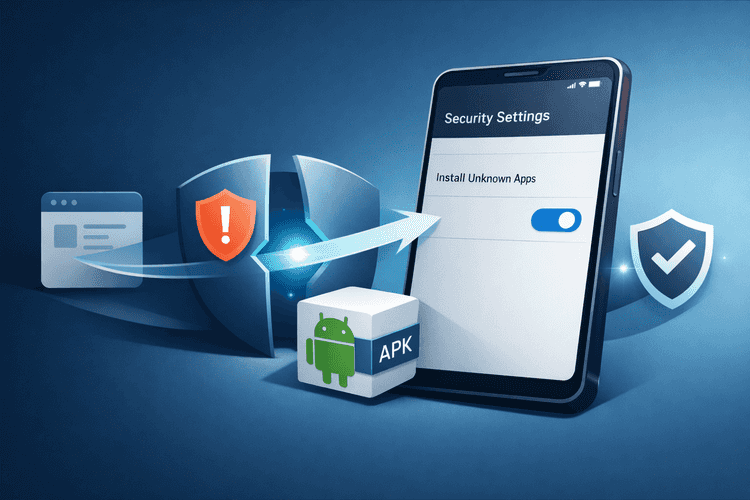
If your phone showed a message like "For your security, your phone is not allowed to install unknown apps from this source", you usually need to allow the source that opened the APK file.
The goal of this guide is to solve that in the simplest way possible.
It is meant for Android and installing an APK outside the store. If you are on an iPhone or iPad, the simplest path is usually to test through TestFlight. If the team asked you to identify your Apple device manually so it can be cleared for installation, see how to get the UDID of your iPhone or iPad.
If you are organizing the app's publication, see the general guide: what I need to publish my app on the app stores and the checklist for Google Play Console verification for organizations.
In short:
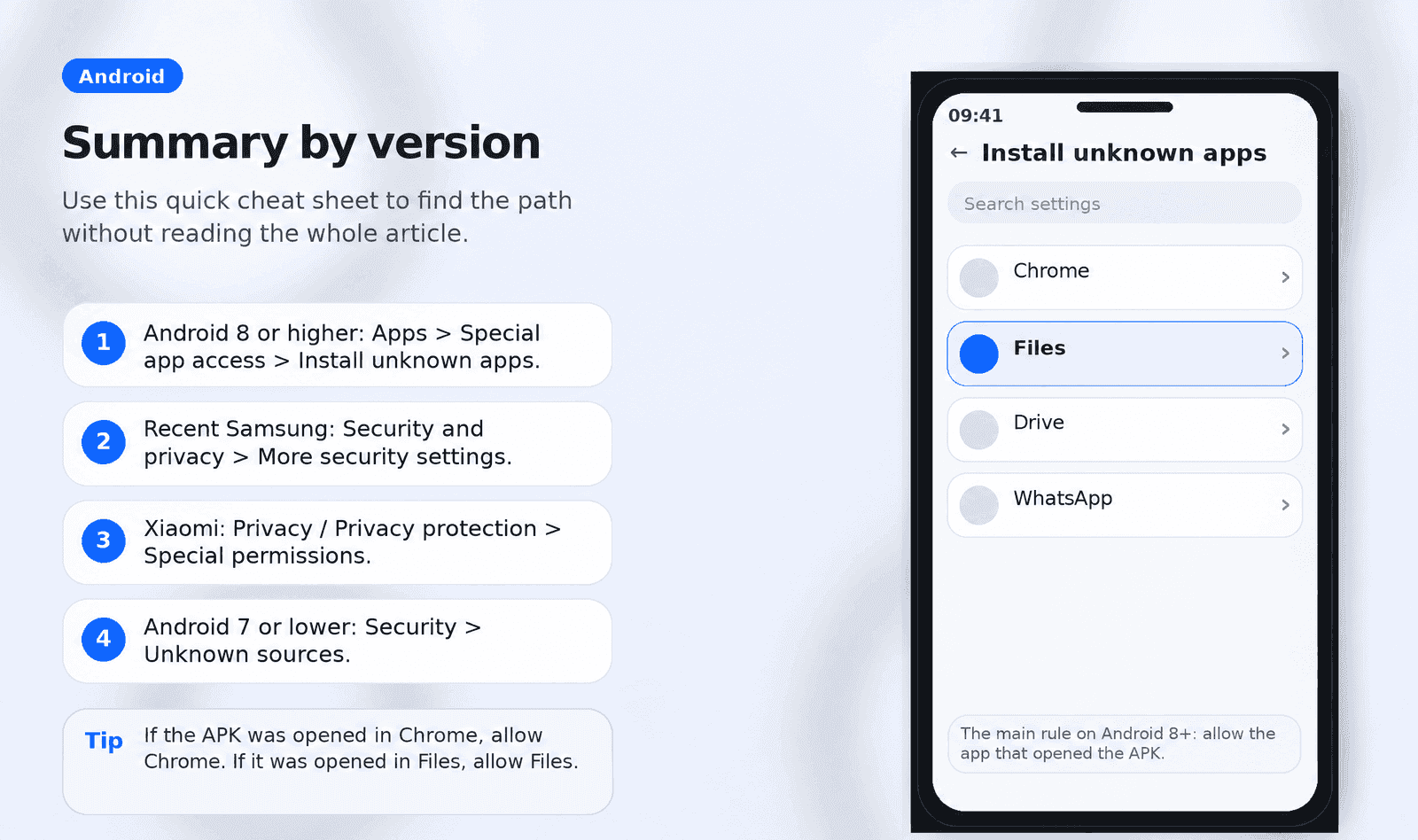
- on Android 8 or later, permission is usually granted per app that installs the APK, such as Chrome, Files, Drive or My Files;
- on Android 7.1.1 or earlier, there is usually a global switch called Unknown sources.
- since September 30, 2026, in Brazil, Google has required apps to come from a verified developer when they are installed through some stores (Play Store, Galaxy Store, Xiaomi's GetApps and others). An APK opened directly from Chrome, Files or Drive still follows the path in this guide. The requirement is expected to reach all apps in 2027 (details in the developer verification section).
What is "unknown sources"?
It is the name many people use for installing apps outside the Play Store. Today, on many devices, this option appears with names like:
Install unknown appsAllow from this sourceTrust this source
In practice, they all mean the same thing: allowing an app, such as the browser or the file manager, to open and install an APK.
Before you start
Before enabling this option, check three things:
- use this step-by-step only if you trust the APK file;
- grant the permission to the app that opened the file;
- after installing, you can turn the permission off again.
Quick example:
- if the APK was downloaded and opened in Chrome, allow Chrome;
- if you opened the file in Files or Files by Google, allow that app;
- if you received the file in Drive or another app, allow the app used to open the APK.
Quick path that works on most phones
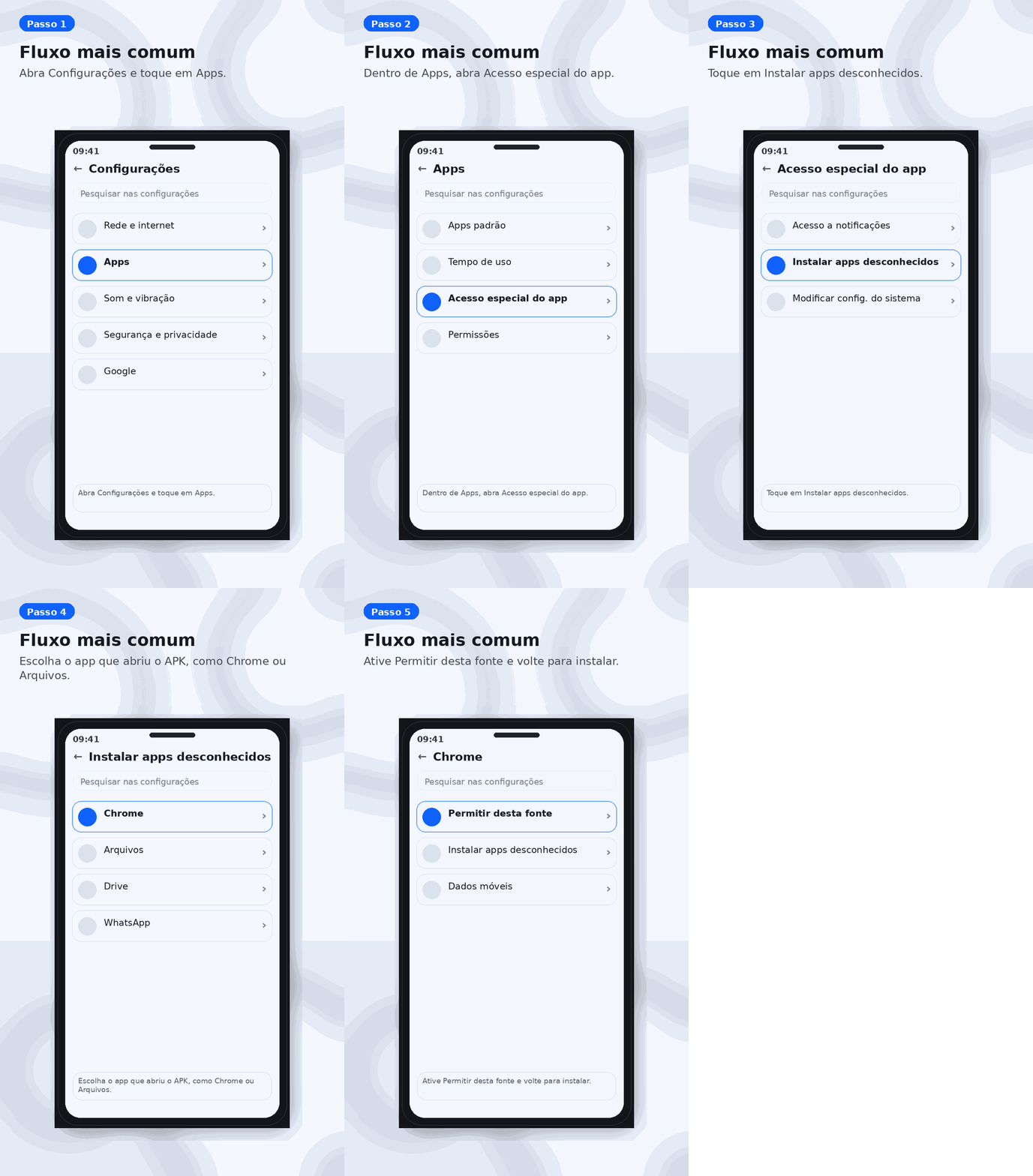
On most devices with a recent Android version, the flow is almost always this:
- Tap the APK file.
- When the block warning appears, tap Settings.
- Open Install unknown apps.
- Choose the app that opened the file, such as Chrome, Files or Drive.
- Turn on Allow from this source.
- Go back and tap Install.
Developer verification: what changed in 2026 and what is coming in 2027
Google created a registry of verified developers: whoever distributes the app confirms their identity and registers the package. The rule applies to Android devices certified by Google (the ones that come with the Play Store and Google services) running Android 7 or later, and it arrives through a Google Play Services update.
Status on November 10, 2026, according to the official Android documentation:
| Situation | What happens in Brazil today |
|---|---|
| App from a verified and registered developer | Nothing changes: the steps in this guide still apply. |
| Unregistered app, installed through a participating store (Play Store, Galaxy Store, GetApps, HONOR App Market, OPPO App Market, Palm Store or V-Appstore) | Since September 30, 2026, the installation is blocked. |
| Unregistered APK opened directly (Chrome, Files, Drive) or from another store | For now it stays the same: just allow the source, as this guide shows. |
| Any unregistered app, starting in 2027 | Google plans to extend the requirement to all apps on certified devices. |
When the requirement applies to the APK you received and the app is not registered, allowing the source is not enough. There are two official paths:
- Advanced flow, designed for experienced users. It is a one-time setup: turn on developer mode, answer a check confirming that nobody is coaching you to turn off the protection, restart the phone and authenticate again, wait 24 hours and confirm with fingerprint, face or PIN. After that you can allow installation for 7 days or indefinitely, and the unverified developer warning still appears before the install button anyway ("Install Anyway", in the documentation). You do not need to keep developer options on afterwards. If the flow is turned off, updates to unregistered apps also fail.
- ADB, from a computer, used by developers and testing teams. Installing through ADB does not require verification and has no 24-hour wait.
If you receive a test build of an app under development, the simplest option is to ask the team to register the package, use limited distribution (an invitation for up to 20 devices) or distribute through Play Store internal testing. Apps installed through the company store on managed devices are outside the requirement.
These steps and deadlines come from Google's documentation, in English, and may change before the 2027 expansion. If your installation gets stuck with an unverified developer warning, that is the cause, not the source permission.
Which path to use in each case
| Your phone or version | Most common path |
|---|---|
| Android 8 or later | Settings > Apps > Special app access > Install unknown apps |
| Recent Samsung | Settings > Security and privacy > More security settings > Install unknown apps |
| Motorola and near-stock Android | Settings > Apps > Special app access > Install unknown apps |
| Xiaomi, Redmi and POCO | Settings > Privacy/Privacy protection > Special permissions |
| Android 7.1.1 or earlier | Settings > Security > Unknown sources |
Samsung Galaxy (One UI 6, Android 14 and Android 15)
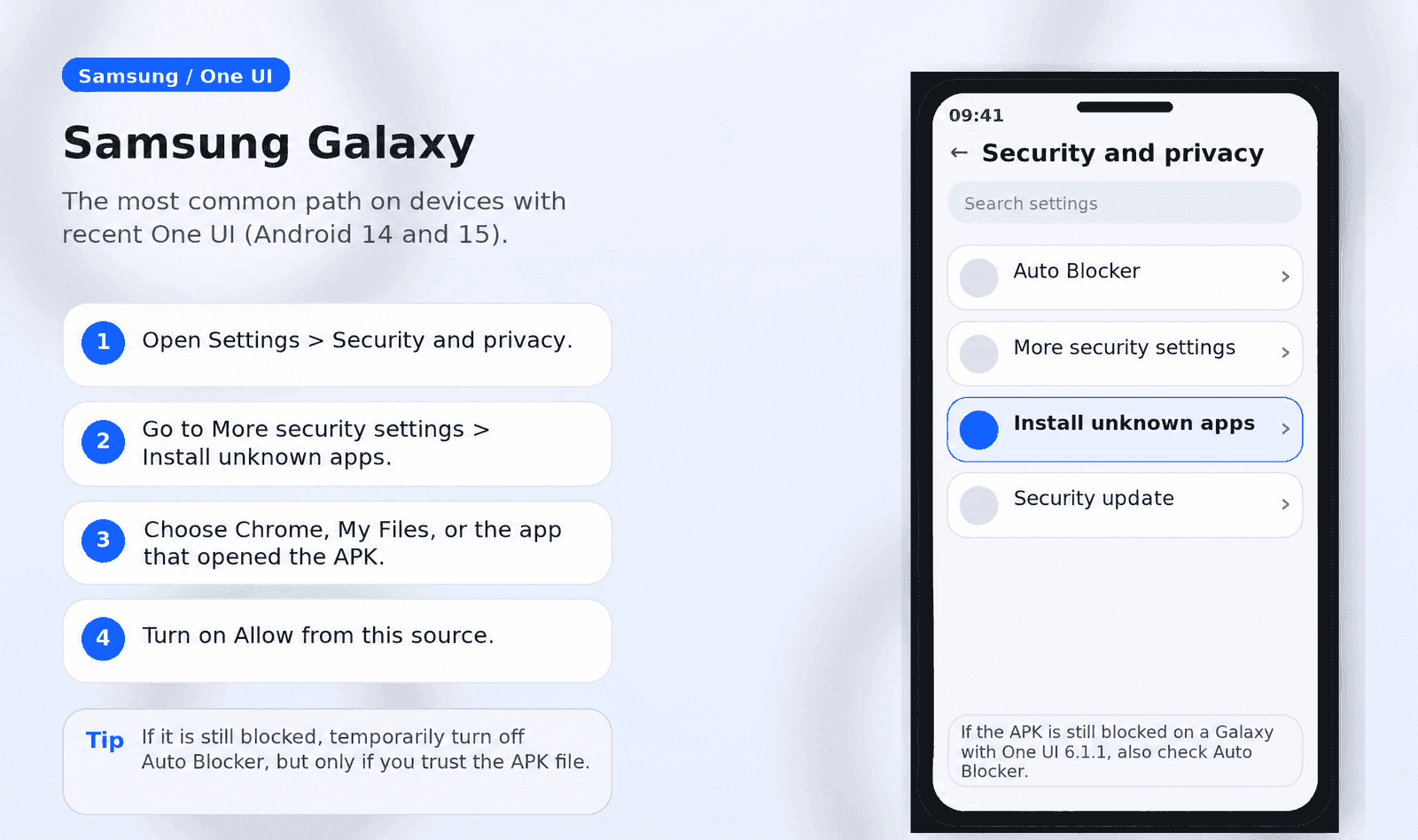
On newer Galaxy devices, the path usually looks like this:
- Open
Settings. - Tap
Security and privacy. - Go to
More security settings. - Tap
Install unknown apps. - Choose
Chrome,My Filesor the app that opened the APK. - Turn on
Allow from this source.
Watch out for Auto Blocker
On more recent Galaxy devices, especially with One UI 6.1.1, the Auto Blocker feature can prevent APK installation even when the source is already allowed.
If you are sure the file is trustworthy, do this:
- Go to
Settings. - Open
Security and privacy. - Tap
Auto Blocker. - Turn it off temporarily.
- Install the app.
- Turn the feature back on afterwards.
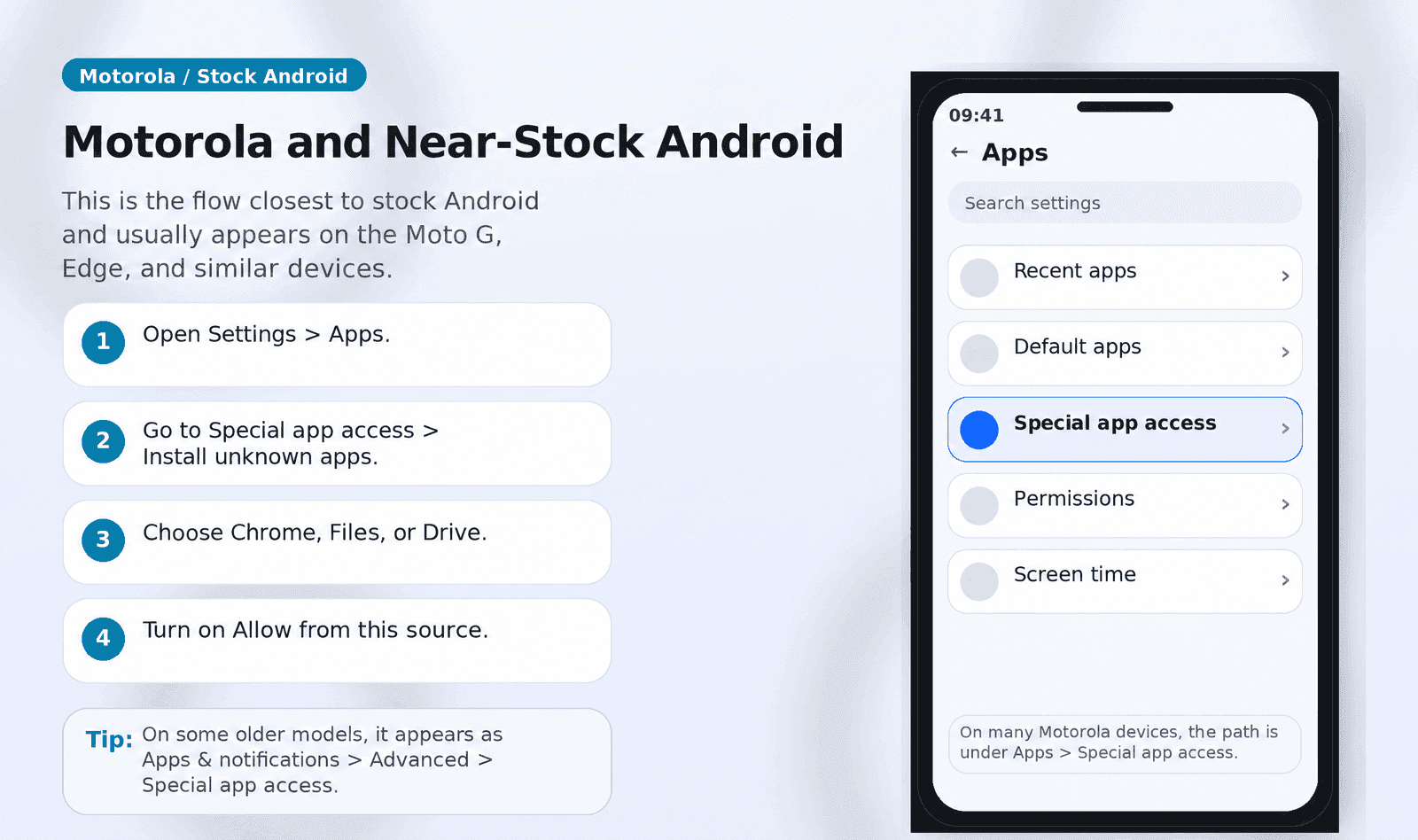
Motorola and near-stock Android
On many Motorola devices and on phones with an interface very close to stock Android, the path is usually this:
- Open
Settings. - Tap
Apps. - Go to
Special app access. - Open
Install unknown apps. - Choose the correct app, such as
Chrome,FilesorDrive. - Turn on
Allow from this source.
If the menu looks a bit different
On some models, especially on older versions, the path may look like this:
Settings > Apps & notifications > Advanced > Special app access > Install unknown apps
Xiaomi, Redmi and POCO (MIUI and HyperOS)
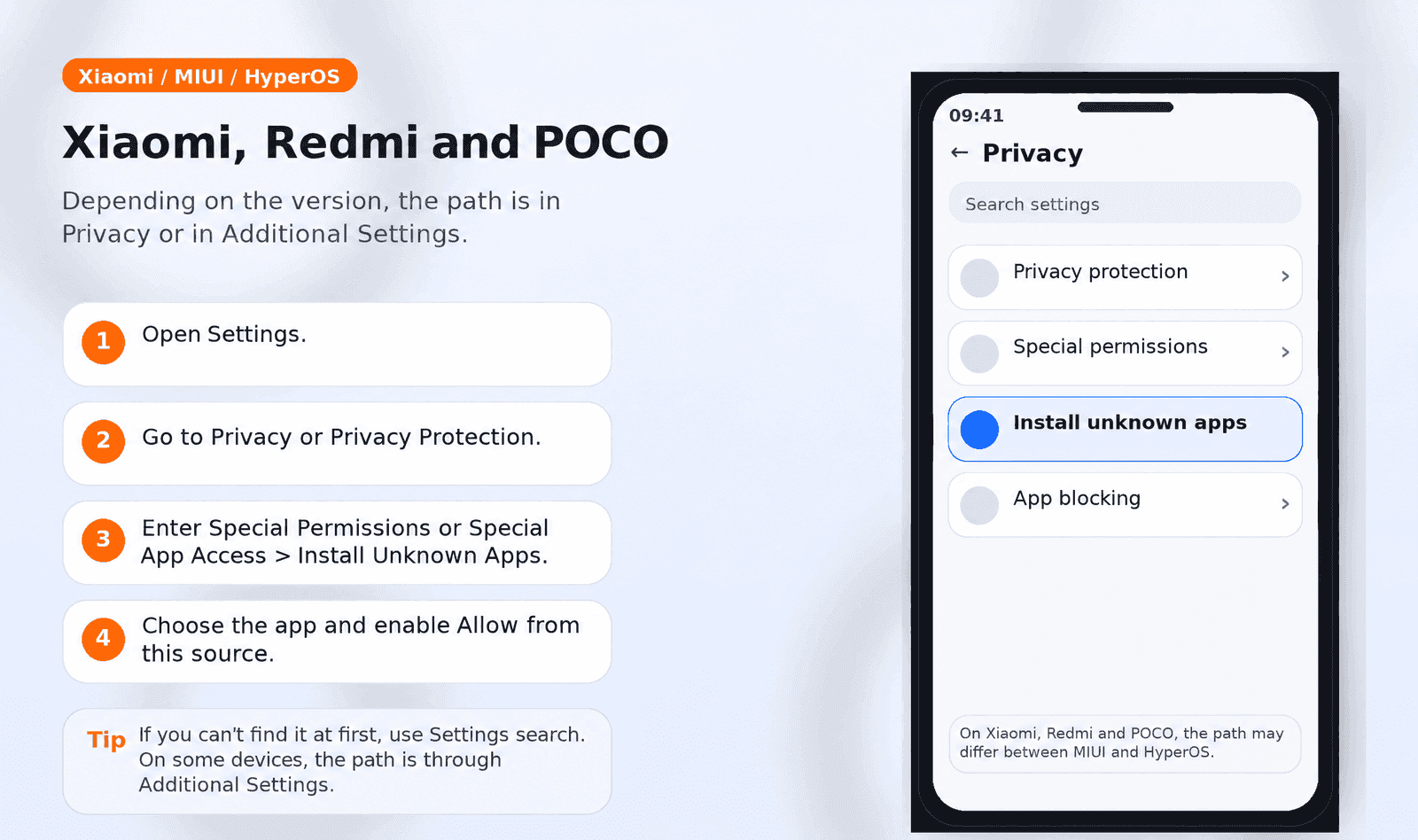
On Xiaomi, Redmi and POCO devices, menu names may change slightly between MIUI and HyperOS. The most common paths are these:
Path 1
Settings > Privacy
or
Settings > Privacy protection
Then:
Special permissions > Install unknown apps
Path 2
On some devices, the path goes through:
Settings > Additional settings > Privacy > Special app access > Install unknown apps
Then just:
- choose the app that opened the APK;
- turn on
Allow from this source.
Android 8 to 12
If the device is not a Samsung or Xiaomi, or if you want to look for the most "standard" Android path, try this route:
- Open
Settings. - Tap
AppsorApps & notifications. - Go to
Special app access. - Tap
Install unknown apps. - Choose the app that opened the file.
- Turn on
Allow from this source.
This logic applies to most devices with Android 8, 9, 10, 11 and 12.
Android 7.1.1 or earlier
On older devices, the permission is usually not per app. It appears as a global system switch:
- Open
Settings. - Tap
Security. - Turn on
Unknown sources. - Confirm the warning.
- Install the APK.
- When you are done, turn the option off again.
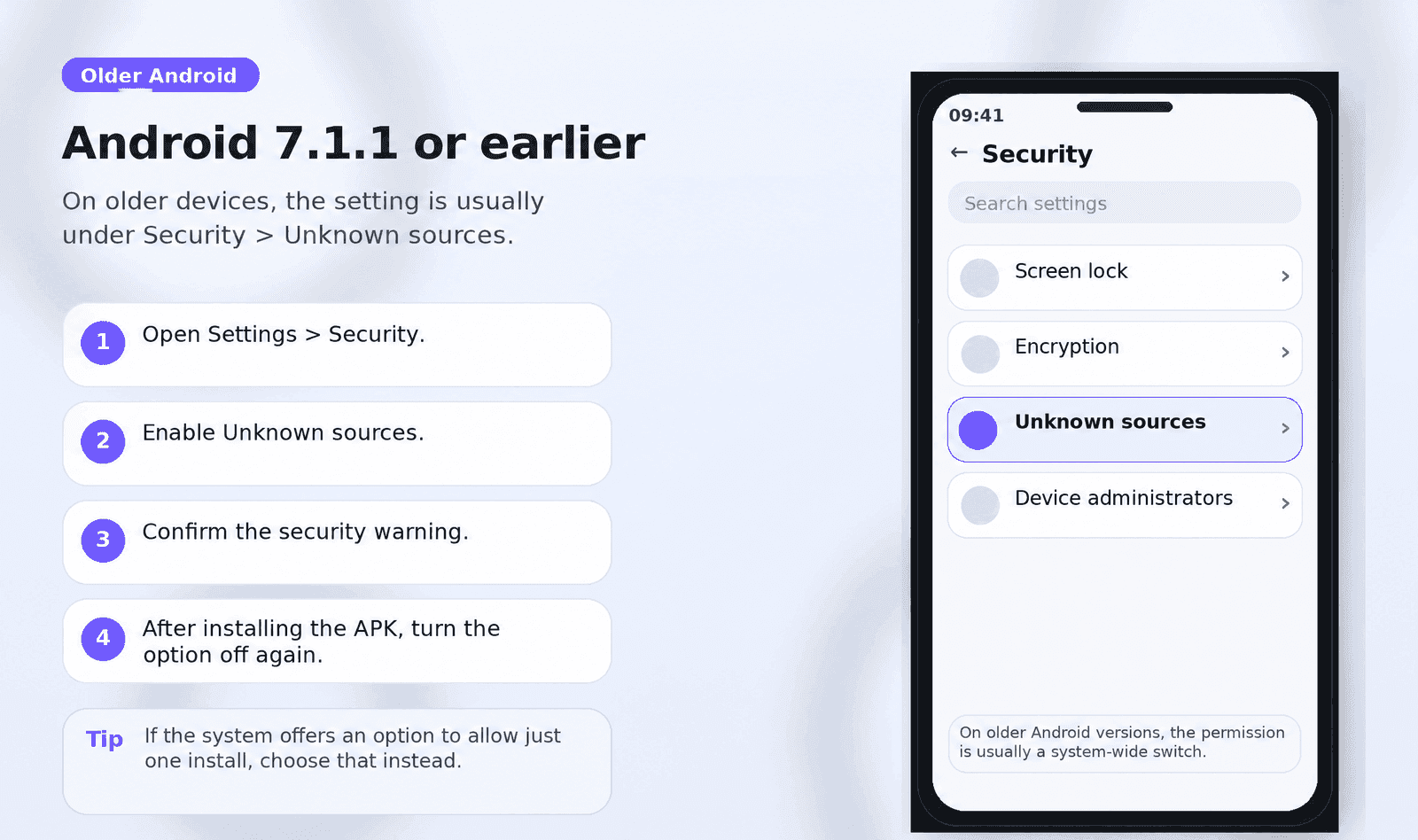
If you see an option to allow only that installation, choose that option.
How to turn it off after installing
Once the app is installed, it is best to remove the permission.
On newer Android:
- Go to
Settings. - Open
Apps. - Go to
Special app access. - Tap
Install unknown apps. - Choose the app you allowed.
- Turn off
Allow from this source.
On older Android:
- Go to
Settings > Security. - Turn off
Unknown sources.
If the option does not appear
These are the most common cases:
1) You are allowing the wrong app
This is the most common mistake.
Example:
- if the APK was opened by
Chrome, allowChrome; - if it was opened in
Files, allowFiles; - if it was opened in
Drive, allowDrive.
2) The path has a different name
Use the search in Settings and type:
install unknown appsunknown sourcesspecial app access
3) The Galaxy still blocks the installation
If it is a recent Samsung, check whether Auto Blocker is on.
4) The device is corporate or has a work profile
On some phones managed by a company, school or work profile, the administrator can block installing apps outside the official store. In that case, the permission may appear disabled or not work.
5) The app was not registered by a verified developer
If the source is already allowed and an unverified developer warning appears, the problem is Google's developer verification, not the permission. On November 10, 2026, in Brazil, this already blocks unregistered apps installed through participating stores; an APK opened directly is not affected yet, but will be with the expansion planned for 2027. See the paths in the developer verification section or ask the app team to register the package.
Quick checklist
- The APK came from a trusted source.
- I found out which app opened the file.
- I granted the permission to the right app.
- If an unverified developer warning appeared, I checked with the team whether the app is registered.
- I installed the app.
- I turned the permission off afterwards.
Next steps
If you are organizing the app's publication, go back to the general guide: what I need to publish my app on the app stores. To finish setting up the Android account, follow the Google Play Console verification for organizations. If the app is also going to iOS, the next step is the Apple Developer account verification (Organization).
Official references
- Google Pixel Help: Download apps to your Pixel phone
- Android Help: Download apps to your Android device
- Android Developers: installing unknown apps by version
- Android Developers: developer verification (countries, stores and deadlines)
- Android Developers: FAQ on verification and the advanced flow
- Android Developers Blog: advanced flow announcement (March 19, 2026)
- Samsung Support: installing apps from unknown sources
- Samsung Brazil: Auto Blocker
- Xiaomi Support: path to install unknown apps
- Xiaomi Support: Allow to install unknown Apps
- Motorola User Guide (Android 13)
- Motorola User Guide (Android 14)
- Motorola Support: Get apps from other sources