Índice do artigofaltam 10 min de leitura
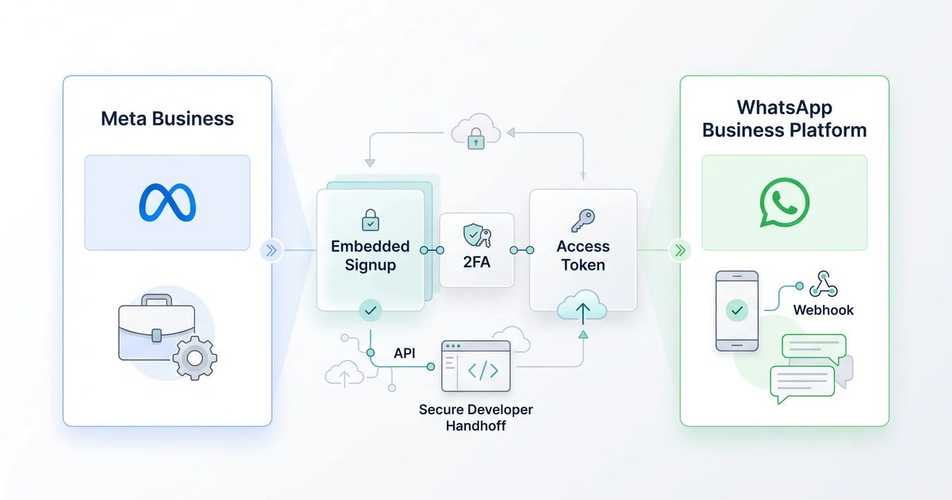
Setting up the WhatsApp Business Platform with Embedded Signup looks like a sequence of screens, but in practice it involves account governance, permissions, business verification, app creation, OAuth, webhook, token and final testing.
This guide is meant for the client to prepare the Meta environment before the technical integration. The idea is to avoid the most common scenario: the company hands over a personal password, a 2FA code, a token or a sensitive screenshot over WhatsApp and later cannot track who has access to its official customer service channel.
The Meta account, the Business Portfolio, the WhatsApp Business Account and the tokens must stay under the company's control. The developer should receive technical access through invitation, role, app and permissions, not through password sharing.
This guide was reviewed on November 11, 2026, after Meta shut down versions 2 and 3 of Embedded Signup (with one temporary exception, explained below). Meta's screens, menu names, verification requirements, permissions and flows may change. Use this article as an operational roadmap and confirm sensitive steps in the official links below.
Official quick links:
- Meta Business Suite: business.facebook.com
- Meta Business Settings: business.facebook.com/settings
- Meta for Developers: developers.facebook.com
- Meta Embedded Signup Overview: official documentation
- Meta Embedded Signup Implementation: implementation documentation
- Embedded Signup versions: versions documentation
- Facebook Login for Business: official documentation
- WhatsApp Business Platform: getting started guide
What this guide will help you solve
By following this guide step by step, your company will be able to:
- prepare or review the Meta Business Portfolio;
- confirm that the company has a Facebook Page, a corporate email and the right administrators;
- turn on two-factor authentication to reduce the risk of account takeover;
- start or review Business Verification, when Meta offers or requires it;
- create the app in Meta for Developers for use with WhatsApp;
- configure Facebook Login for Business for Embedded Signup;
- save the Configuration ID needed for the integration;
- prepare the WhatsApp Business Account, or WABA;
- connect the phone number, webhook and token without exposing credentials;
- understand which permissions are part of the flow;
- give access to X-Apps or to your developer securely.
Before you start: gather this information
Before opening Meta, gather:
- a personal Facebook account belonging to a person authorized by the company;
- administrative access to the company's Business Portfolio;
- a Facebook Page linked to the company, when applicable;
- a corporate email for communications and verifications;
- the company's official details for verification, such as legal name, CNPJ (Brazil's company registration number), address and documents;
- the domain or URL of the system that will host Embedded Signup;
- the phone number that will be used on the WhatsApp Business Platform;
- a person responsible for approving 2FA, verification, permissions and sensitive changes;
- a technical webhook endpoint, when the integration is already under development;
- a safe place to store the token, app secret, Configuration ID and environment variables.
Avoid starting the flow with an employee's personal account without governance. A personal Facebook account may be needed to access the Business Portfolio, but ownership of the assets should stay in the company's business portfolio.
Understand the names before configuring
Meta uses many similar names. Before going through the steps, it helps to separate the concepts.
| Item | What it is for | Critical point |
|---|---|---|
| Business Portfolio | Administrative scope of the company's assets inside Meta. | Must belong to the company, with the right administrators and 2FA. |
| Facebook Page | The company's public asset on Facebook. | May be required or useful to validate the business's presence and assets. |
| Meta App | An application created in Meta for Developers to integrate Meta products. | Must be associated with the correct Business Portfolio. |
| Facebook Login for Business | Login/OAuth configuration used to authorize access to business assets. | This is where Embedded Signup uses the Configuration ID. |
| Configuration ID | Identifier of the login configuration used in Embedded Signup. | Must be saved and used by the tech team in the onboarding flow. |
| WABA | WhatsApp Business Account, the WhatsApp business account inside the platform. | It is the asset that groups the number, templates, permissions and API usage. |
| Webhook | The system URL that receives events from the platform, such as messages and statuses. | Must be in a secure, validated and monitored environment. |
| Access Token | Credential used for calls to the Graph API/WhatsApp Business Platform. | Must be treated as a secret and never sent through an insecure channel. |
What Embedded Signup is
Embedded Signup is the embedded flow that lets a company connect to the WhatsApp Business Platform from an application or portal. Instead of doing the whole onboarding manually, the flow guides the client to authorize the app, select or create WhatsApp assets and return data that the technical integration needs to capture.
For the company, this reduces friction. For the tech team, it requires preparation: the app must be configured, the login experience must be correct, permissions must make sense, and the system must know how to receive the flow's response.
The flow also accepts numbers that already work in the WhatsApp Business app. This is coexistence (CoEx), an official Meta feature in which the same number stays in the app and also operates through the API at the same time. For this, the integration must come from a Solution Partner or Tech Provider and the flow must be customized to receive app users, whose app must be on version 2.24.17 or later. What syncs, the costs and the limitations are in the complete WhatsApp CoEx guide. Even in these cases, the security rule stays the same: no password, token or verification code in casual chats.
Step by step to prepare Meta Business and WhatsApp Embedded Signup
1. Open the correct Business Settings
Go to business.facebook.com/settings with the account of a person authorized by the company.
Confirm that you are in the right Business Portfolio. Companies with more than one operation, an old agency, a branch, an ad account or a duplicate Page may have several portfolios. Choosing the wrong portfolio can lock the WABA, the app or the number into a scope that should not control the project.
Check:
- the portfolio name;
- current administrators;
- linked assets;
- the company Page;
- restrictions or alerts;
- two-factor authentication;
- the permissions of the person who will do the setup.
2. Organize administrators and 2FA
Before creating an app or connecting a number, fix the basic governance.
Ideally, the company should have more than one trusted administrator in the Business Portfolio. A single administrator creates operational risk: a lost phone, an employee leaving, a blocked personal account or lack of access at a critical step.
Turn on two-factor authentication for administrators and people with sensitive access. Meta may require 2FA for certain actions, and the absence of this control can block verifications, permissions or publications.
3. Link the company Page
If the company already has a Facebook Page, confirm that it is linked to the correct Business Portfolio.
If the Page is in another portfolio or controlled by an old account, sort out that ownership before moving on. The same applies to assets inherited from agencies, freelancers or old personal accounts.
4. Review the health of the Business Portfolio
Before the integration, check for restrictions, pending security items, payment problems, policy alerts or incomplete verification.
Not every account needs to go through every step at the same time, but a restricted portfolio can prevent:
- app creation;
- asset association;
- permission requests;
- use of advanced features;
- publishing the app in Live mode;
- stable use of the WhatsApp number.
5. Start Business Verification when available
Go to the Business Portfolio Security Center and see whether business verification is available or required.
When Meta asks for verification, use official and consistent data:
- legal name;
- CNPJ;
- address;
- phone number;
- website or domain;
- the company's official documents.
Avoid improvising data that differs from the documents. Mismatches between name, address, domain and document usually cause rework.
This step is the one that most often blocks integrations with advanced permissions, such as the final WhatsApp association in a CRM. That is why it has its own guide, designed for the person in charge at the company to carry out without depending on the tech team: how to verify your business on Meta Business, with documents, status and next steps.
6. Create the app in Meta for Developers
Go to Meta for Developers and create an app for the project.
During creation, select an option related to connecting with customers through WhatsApp or the WhatsApp product, as the current interface shows.
Associate the app with the correct Business Portfolio. This association matters because permissions, assets, verification and publication depend on the business scope.
Use clear names, for example:
xapps-whatsapp-client-production;whatsapp-support-app;client-portal-whatsapp-signup;whatsapp-crm-integration.
Avoid generic names like test, new app or whatsapp 2, especially if there will be audits, permission reviews or team changes.
7. Configure Facebook Login for Business
In the app, go to the Facebook Login for Business area and create a configuration for the Embedded Signup flow.
This step matters because Embedded Signup uses a login configuration to control what the client authorizes and which permissions are part of the flow.
Use version 4 of Embedded Signup. Meta shut down versions 2 and 3, including the public preview ones, on October 15, 2026 (a single v2 flow, for WABA sharing only, stayed active until November 16, 2026). In v4 the version is not chosen by a parameter: it comes from the configuration. Create a new Facebook Login for Business configuration, choose the WhatsApp Embedded Signup login variation and select the desired products; that already puts the flow on v4. Apart from that exception, calls that still request v2, v3 or no version are now served as v4, and features with no v4 equivalent stop working. If your integration still used v2 or v3, especially with coexistence on v2, review the configuration with the tech team: this type of flow is not migrated automatically by Meta and requires a manual update.
When creating the configuration:
- select the WhatsApp Embedded Signup login variation;
- select the products the flow will use, which sets version 4;
- define the allowed domains;
- configure OAuth URLs according to the application;
- review the data requested from the user;
- save the Configuration ID.
The Configuration ID is not a password, but it is a sensitive technical identifier for the integration. Keep it in the configuration repository, a secure ticket or the project's internal documentation. Do not leave it sitting in a screenshot.
8. Prepare the WhatsApp Business Account
Next, prepare the WhatsApp Business Account in the correct scope. It can be created during the flow or selected if it already exists, depending on the account's state and Meta's interface.
Confirm:
- the WABA name;
- the associated Business Portfolio;
- the phone number;
- the display name;
- the number's verification status;
- users or people with access;
- the app's permissions;
- templates and limits, when applicable.
If the number is already used in the WhatsApp Business app, decide between coexistence, which keeps the app active, and a full migration to the API. Do not disconnect a number used in real operations without a transition plan, testing and an agreed window.
9. Configure the phone number
The phone number is a critical asset. Before connecting it, confirm:
- whether the company controls the SIM card, line or number;
- whether the number can receive SMS or calls, when Meta requests verification;
- whether the number is already in use in another product, app, BSP (Business Solution Provider) or WABA;
- who approves the verification in real time;
- what display name the end customer will see.
Do not send a verification code over WhatsApp, email or a public chat. If the code is needed, do the step in a supervised, one-off session.
10. Configure the webhook
The webhook is the URL that will receive events from the WhatsApp Business Platform, such as incoming messages, delivery statuses and relevant changes.
For the developer, the webhook needs:
- a public endpoint with HTTPS;
- webhook token verification;
- handling of expected events;
- secure logs;
- idempotency to avoid duplicates;
- failure monitoring;
- care not to record messages, tokens or personal data beyond what is necessary.
For the client, the main decision is to make sure the tech team has the control it needs to configure and test the endpoint without asking for personal Meta account credentials.
11. Generate and store the access token securely
At some point in the setup, the integration will need a token to call Meta/WhatsApp APIs.
Treat this token like a system password:
- do not send the token over WhatsApp;
- do not paste the token in an email;
- do not put the token in a spreadsheet;
- do not take a screenshot with the token visible;
- do not put the token in source code;
- do not commit a
.envfile with a real token; - do not expose the token in a front end, mobile app or browser extension;
- store it in a secret manager, corporate vault or secure environment variable;
- rotate it when there is a leak, a vendor change or a change in scope.
If the tech team needs the token, use a secure secrets channel or configure it directly in the environment with supervision.
12. Review permissions
The most common permissions in this context are:
whatsapp_business_management;whatsapp_business_messaging;business_management, when applicable.
Meta documents these permissions in the WhatsApp Business Platform and Facebook Login for Business flows. The exact set may vary depending on the app, type of integration, review, product used and mode of operation.
Use the smallest set that lets the integration work. Overly broad permissions increase risk and can make review harder.
13. Request Advanced Access or App Review when needed
During development, some permissions may only work for people with a role in the app, test assets or limited mode.
For production with real customers, Meta may require:
- App Review;
- Advanced Access;
- a usage justification;
- a screencast or explanation of the flow;
- the app in Live mode;
- domain and privacy policy configured;
- tests with real accounts.
Do not leave this step for publication day. Platform reviews may require changes to screens, text, permissions or the consent flow.
14. Switch the app to Live mode only when it is ready
Live mode should not be treated as a final button without validation.
Before going Live:
- confirm the correct app, Business Portfolio and WABA;
- review domains and OAuth;
- validate the webhook;
- confirm token and permissions;
- test with an authorized real number;
- check the logs;
- confirm the fallback to human support;
- document who maintains the account and who maintains the integration.
What not to send over WhatsApp or email
To give access to X-Apps or any developer, do not send:
- the personal Facebook account password;
- a two-factor authentication code;
- the number's verification code;
- the access token;
- the app secret;
- a screenshot showing a token, key, partial phone number or sensitive document;
- corporate documents in an open conversation;
- card, payment data or tax information without an appropriate channel;
- an administrative invitation to the wrong person;
- permanent access when a supervised session would do.
The safe path is invitation by role, supervised setup, a secrets vault and a clear record of what was granted.
Final checklist for the client
Before considering the environment ready, confirm:
- Correct Business Portfolio selected.
- Administrators reviewed.
- 2FA turned on for people with sensitive access.
- Company Page linked, when applicable.
- Business Verification started or completed when required.
- App created in Meta for Developers.
- App associated with the correct Business Portfolio.
- Facebook Login for Business configured with Embedded Signup v4.
- Configuration ID saved.
- Domains and OAuth reviewed.
- WABA created or selected.
- Phone number controlled by the company.
- Webhook configured and tested.
- Access token stored in a safe place.
- Permissions reviewed.
- Advanced Access or App Review submitted when needed.
- App switched to Live mode only after testing.
- X-Apps or the developer with appropriate technical access, without a shared password.
When to call the tech team
Call the tech team when any of these steps comes up:
- OAuth configuration;
- allowed domain;
- webhook;
- token;
- permissions;
- App Review;
- Embedded Signup response;
- send and receive testing;
- integration with CRM, ERP, helpdesk, chatbot, AI agent or internal dashboard.
In these steps, the technical decision affects security, maintenance and how the operation works. For a customer service, sales or automation project on WhatsApp, the Meta setup is only the foundation. The value appears when the platform is connected to the right systems, with governance, logs, human fallback and monitoring.
If the goal is to use WhatsApp as a smart customer service channel, also see the guide on AI chatbots and enterprise RAG and the material on ERP and CRM integration.
Official sources consulted
- Meta Embedded Signup Overview
- Meta Embedded Signup Implementation
- Embedded Signup Versions
- Meta for Developers: Embedded Signup v4 (May 14, 2026)
- Onboarding WhatsApp Business app users (coexistence)
- Facebook Login for Business
- WhatsApp Business Platform - Get Started
- Business phone number registration