Índice do artigofaltam 8 min de leitura
One-sentence summary: when the WhatsApp integration stops moving forward due to missing advanced permissions, the fix is almost always administrative, not technical: Meta needs to confirm that your company officially exists, and only someone responsible at the company can complete that step.
This guide exists for a specific moment: the system is ready, the WhatsApp connection flow opens normally, you choose the account and the number, and the final connection doesn't complete. The screen looks like a CRM bug, but what is missing is business verification in the Meta portfolio.
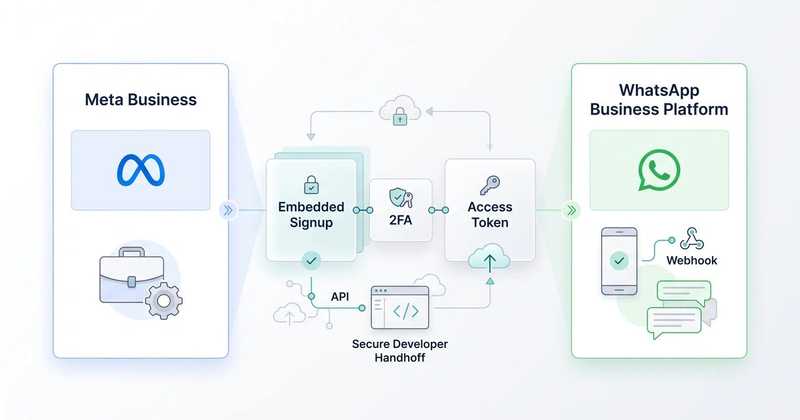
The good news: it is an objective, free process, usually done once per portfolio and repeated only if the company's data changes, and this article shows exactly what to prepare, where to click and what to tell the technical team at the end. It complements our complete guide to Meta Business and WhatsApp Embedded Signup, which covers setup end to end.
What business verification is (and why Meta requires it)
Business Verification is the process by which Meta confirms that a real legal entity stands behind the portfolio: legal company name, tax registration, address, phone and website. According to Meta itself, verification helps confirm that the business account complies with applicable laws and protects the organization against unauthorized use.
For integrations, it has a direct practical effect: Meta's developer documentation states that apps requesting advanced access to permissions must be connected to a verified business. That is exactly the case with a WhatsApp integration with a CRM, which uses permissions such as whatsapp_business_management and whatsapp_business_messaging on behalf of real customers.
Requiring proof that a company exists is not unique to Meta. The same happens with Apple Developer organization verification and with Google Play Console verification.
What business verification is not
Meta uses the word "verification" in different contexts, and that is the biggest source of confusion. It is worth separating them:
| Term | What it is | Who handles it |
|---|---|---|
| Business verification | Administrative confirmation that the portfolio belongs to a real legal entity. This is what this guide covers. | Person responsible at the company |
| Meta Verified | Paid subscription with a verified badge, support and identity protection. Unrelated to integrations. | Optional, nobody needs it here |
| Page or profile badge | Notability verification for public figures and brands. A different process with a different goal. | Does not apply to this flow |
| App verification and App Review | Technical review of the integration app and the permissions it uses. | Technical team |
Meta's official page is explicit: verifying your business in Meta Business Suite is different from Meta Verified for businesses and will not grant a verified badge. In other words, completing this step does not give your brand a blue badge, and subscribing to Meta Verified does not replace business verification.
How to tell the blocker is verification, not the system
Some signs indicate that the integration stopped at the administrative step:
- the WhatsApp connection flow opens normally inside the system and lets you move through the first screens;
- you can select the account and number, but the final connection doesn't complete or comes back with a permission warning;
- the Meta dashboard shows the app waiting for advanced access to permissions, and the request requires a verified business;
- in the portfolio's Security Center, business verification shows as not started or pending.
When that is the picture, redoing the flow in the CRM doesn't change the result, because nothing there is broken. The fix happens on the company's side of the Meta account.
Who does what
This split avoids rework and protects data on both sides:
| Step | Responsible |
|---|---|
| Confirm the company's registration data at Meta | Person responsible at the company |
| Send official documents when requested | Person responsible at the company |
| Follow the status and answer Meta's extra requests | Person responsible at the company |
| Report when the status changes | Person responsible at the company |
| Configure app, permissions and connection flow | Technical team |
| Request Advanced Access and run App Review | Technical team |
| Redo the connection and test the integration in the CRM | Technical team |
The company's part cannot be delegated when Meta requires official data and documents: the process requires full control of the business portfolio, which is the highest permission level, and information about the legal entity. That is why the technical team prepares the ground but does not complete verification on the client's behalf.
Where verification sits in Meta's interface
The current path, as described in Meta's Help Center:
- Go to Business settings with the account of an authorized person.
- Confirm you are in the correct business portfolio (companies with an old agency, a branch or a duplicate Page often have more than one).
- Open the Security Center.
- Find the business verification section and the Start verification button.
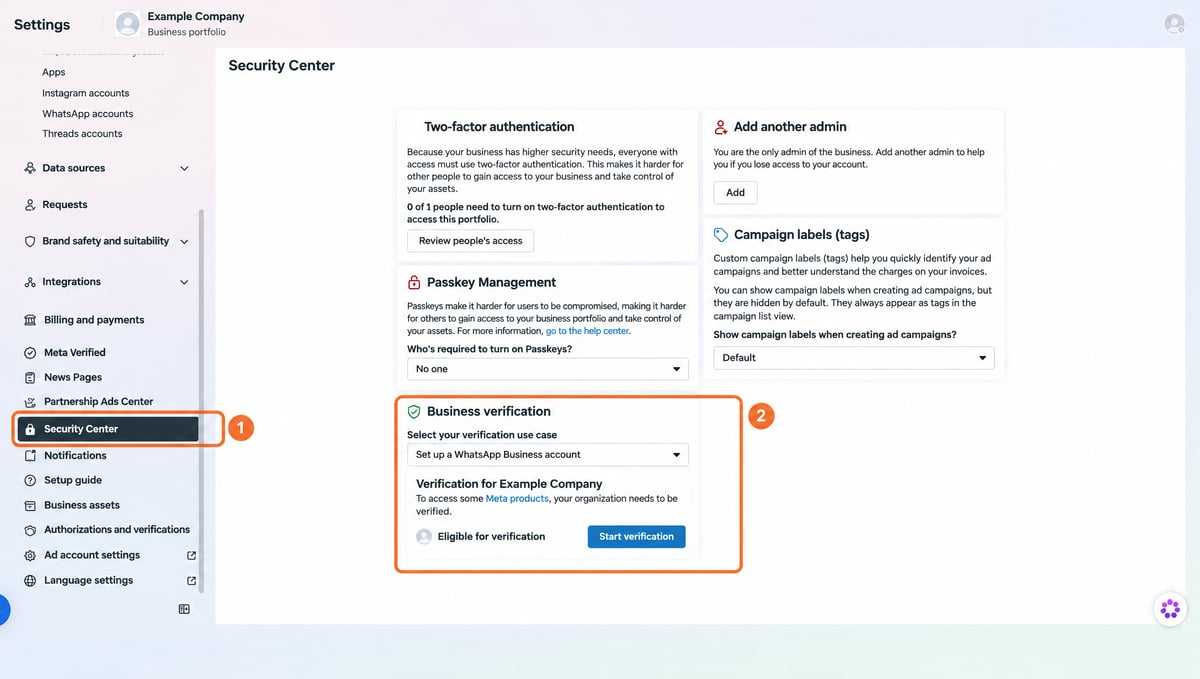
Note a useful detail on the card: the use case selector already includes the option to set up a WhatsApp Business account, exactly the scenario for anyone who got here because of an integration.
Two important warnings:
- Names and menus change. Meta reorganizes the interface frequently, so "Security Center" or the path to the button may appear with small variations. The concept stays the same: business verification inside the portfolio settings.
- If the button doesn't appear, the most common cause is that the logged-in account does not have full control of the portfolio. There is also the case where the Center shows "Not eligible for verification": according to Meta, in that situation the process can be completed from an email or notification from the product that requires verification, so look for that communication before concluding something is wrong.
Data to prepare before you start
Gather this information about the legal entity before opening the form:
- legal company name exactly as registered;
- CNPJ (Brazil's company tax ID) or equivalent tax registration;
- the company's official address;
- a business phone that can receive a confirmation;
- the company website, which according to Meta must load and use HTTPS;
- a corporate email, preferably on the company's domain;
- the authorized person who will run the process, with full control of the portfolio.
Documents Meta accepts
The official list of documents is in the Help Center, and we summarize the main points here.
For registered organizations, Meta asks for one of these items:
- business registration issued by the government;
- the company's tax document, such as a tax return or exemption certificate;
- official articles of incorporation or partnership agreement.
In the Brazilian context, the usual equivalents are the CNPJ registration certificate, the registered articles of association (contrato social) and the company's official tax documents. When in doubt, choose the most recent official document that shows the legal company name and registration data together.
For sole proprietors, Meta accepts a government registration document confirming ownership or the business tax return. Those without a registered company fall into a flow with a photo ID and proof of address.
When the goal is to prove a person's link to the company, the official list includes a certificate of incorporation, articles of association, a business license, a utility bill in the company's name and a tax return.
What usually doesn't work
Meta explicitly lists materials that do not prove the company or a link to it:
- business card or logo image;
- proof of domain ownership;
- letterhead or envelope;
- personal letter or email exchange;
- screenshot or website link, including Wikipedia;
- flyer or brochure;
- photo of the premises;
- editable or publicly available documents.
If the material could be produced by anyone in a text editor, it won't pass. Use an official document.
Quality of the file you send
The official quality requirements are simple and eliminate most avoidable rejections. The document image must be:
- sharp, with no blur or cropping;
- in color, not scanned in black and white;
- complete, showing the whole document with visible edges;
- of a current document, within its validity;
- unaltered in any way, with no erasures, markings or digital edits.
Prefer an official PDF or a well-lit, aligned photo of the whole document. Avoid screenshots of systems, partial crops or files re-saved with annotations.
The data must match exactly
This is the detail that causes the most rejections and rework. Meta's official guidance when filling in the form: check that the details entered exactly match the details of your legal entity.
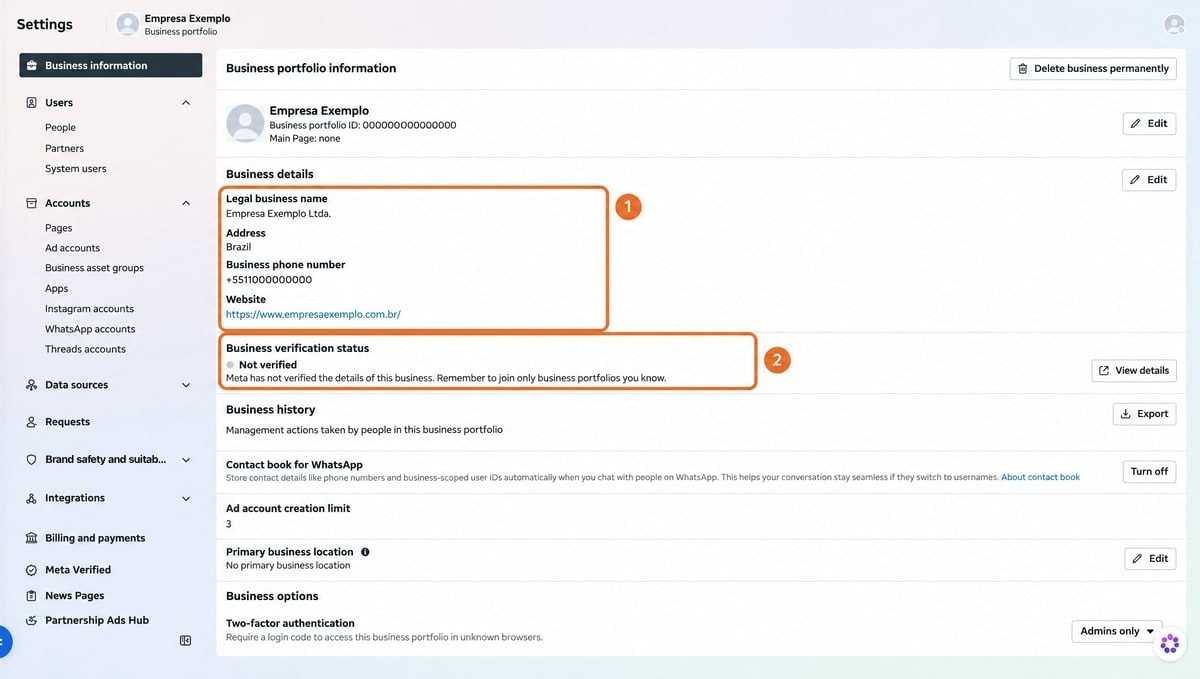
In practice:
- the legal name typed must be identical to the one in the document, including suffixes such as LTDA or ME (Brazilian company-type suffixes);
- the address must be the same as in the official records, not that of an undocumented branch;
- phone and website must belong to the company and be working at the time of review;
- a trade name does not replace the legal name in the verification fields.
And an official warning that saves surprises: if the company's data is edited later, Meta requires the verification process to be completed again. Get the registration right before submitting.
The submission step by step
With data and documents at hand, the flow described by Meta is this:
- In the Security Center, click Start verification.
- Enter the company details: legal name, address, phone and website.
- Confirm the company among the records Meta finds. If none match, select the option equivalent to "my business isn't listed" and send the requested official documents, such as articles of association or a business license.
- Choose how to confirm your connection to the company: email, phone, SMS, WhatsApp message or domain verification (adding a meta tag or DNS record to the website, with help from the technical team if needed).
- Confirm and click Done. The screen will show that the verification submission was received.
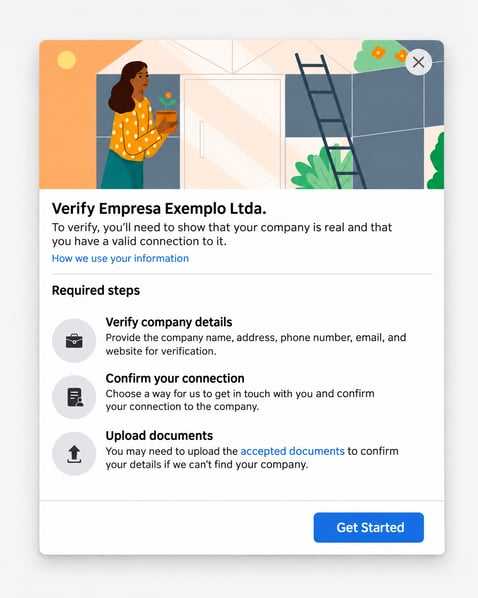
If confirmation is by email on the company's domain or by domain verification, involve whoever manages the website or DNS. This is help the technical team can give without touching the company's documents.
How to follow the status
After submission, you follow it in the Security Center itself and through Business Suite notifications. The typical cycle:
| Situation | What it means | What to do |
|---|---|---|
| Not started | The process hasn't begun yet | Follow the step by step above |
| Submission received / under review | Meta is reviewing the data and documents | Wait for the notification |
| Request for additional information | Meta needs one more piece of data or document | Respond through the flow indicated in the notification |
| Approved | Business verified | Tell the technical team |
| Rejected | The review did not confirm the data | See the next section |
On timing, the current official information is just this: the decision can take up to 14 business days, with a notification when the review ends. The actual time varies by case, so be wary of any promise of approval in hours and don't replan the project over one more day in the queue.
The exact names of each status may vary with the interface, but this is the cycle. On current screens, for example, the state before submission appears as "Not verified" in the company information and as "Eligible for verification" in the Security Center, as in the screenshots in this guide. What matters is to look at the Security Center, not the CRM screen: until the verification status changes, the final connection will remain stuck, and that does not indicate a system defect.
If verification is rejected
A rejection is not a dead end, and it almost always has an identifiable cause:
- Reread the reason in Meta's notification. The feedback usually indicates whether the problem was the document or a data mismatch.
- Check the most common mismatches: legal name abbreviated or different from the document, outdated address, expired document, illegible or black-and-white file, website down or without HTTPS.
- Fix it at the source. Adjust the portfolio registration or get the right document, remembering that editing the data requires redoing verification.
- Resubmit through the same flow in the Security Center.
- If the rejection persists with correct data, use Meta's own help channels from the Security Center, which give access to the support and troubleshooting options for the case.
Treat a rejection as a registration fix, not an incident. None of these situations blocks the account or the WhatsApp number already in use; it only delays the release of advanced permissions.
Done? Tell the technical team the right way
As soon as the status changes to submitted, under review or approved, tell whoever handles the integration. A simple message is enough, with:
- the current status shown in the Security Center;
- the submission date or the date of the status change;
- the name of the business portfolio used.
And just as important, what not to send in any chat, not even to the technical team:
- a personal or corporate account password;
- a two-factor authentication code;
- an access token or API key;
- a copy of a corporate or tax document;
- a screenshot with sensitive data visible.
The technical team needs none of this to continue. When some access is needed, the right path is a role-based invite within Meta itself, as we explain in the guide to sharing credentials securely.
What happens after approval
With the business verified, the ball goes back to the technical team, which follows the roadmap in the Embedded Signup guide:
- request Advanced Access for the WhatsApp permissions used by the integration;
- complete App Review when Meta requires it, with a use-case justification and a demonstration of the flow;
- redo the account and number connection in the system, now with the flow completing to the end;
- test sending, receiving and the webhook;
- deliver the operation running in the CRM, including in scenarios of coexistence with the WhatsApp Business app.
In other words: business verification is not the last step, but it is the key that unlocks the last steps.
Checklist for the person responsible at the company
- I have full-control access to the correct business portfolio.
- Legal name, CNPJ, address, phone and website checked against the official documents.
- Company website online, with HTTPS.
- Official document chosen: sharp, in color, complete, current and unaltered.
- Verification started in the Security Center.
- Confirmation method completed (email, phone, SMS, WhatsApp or domain).
- Submission confirmed and status noted.
- Technical team informed with status, date and portfolio name.
- No password, 2FA code, token or document sent by chat.
Frequently asked questions
No. Meta itself states that business verification in Meta Business Suite is different from Meta Verified and does not grant a verified badge. Meta Verified is a paid subscription with benefits such as a badge and support. Business Verification is a free administrative process that confirms the company is a real legal entity, and it is what unlocks advanced permissions for integrations.
Not when Meta requires the company's official data and documents. The process requires full control of the business portfolio and information about the legal entity, so it has to be completed by someone responsible at the company itself. The technical team prepares everything before and after: app, permissions, App Review and integration. What it can do alongside you is support steps such as domain verification.
Meta's official page states that the decision can take up to 14 business days after submission, with a notification when the review ends. The time may vary by case, so follow the Business Suite notifications instead of waiting for a fixed deadline.
In the verification fields, use the legal entity's data. The official guidance is that the details entered must match the registered company exactly, so the legal company name, address and phone must match the official documents. A trade name may appear elsewhere in the account, but it should not replace the legal name in verification.
Because they are different steps. Meta's modal opens and lets you select the account and number because the integration app is configured. The final connection depends on advanced permissions, and Meta only grants advanced access to apps connected to a verified business. Without completed verification, the flow gets stuck at the end even with the system working.
Not yet. Approval unlocks the next step, which is technical: requesting advanced access to the WhatsApp permissions and completing App Review when required. That is why it is important to tell the technical team as soon as the status changes to approved.
The technical team requests Advanced Access for the necessary permissions, completes App Review if Meta requires it, redoes the connection flow in the system and tests sending and receiving messages. From then on, WhatsApp operates integrated with the CRM. If the company's data is edited later, Meta requires verification to be done again.
Official sources consulted
- Business settings, Meta Business Suite
- Verify your business in Meta Business Suite, Meta Help Center
- Documents required to verify a business account, Help Center
- Documents that prove a link to the business, Help Center
- Business Verification, Meta for Developers
- WhatsApp Embedded Signup, Meta for Developers
Meta's interfaces, menu names and requirements change frequently. This guide was checked against the official pages above in August 2026, and the screenshots are real, with all names, numbers and identifiers replaced by fictitious example values. If there is a difference between the article and the screen you are seeing, follow the current official instruction and let us know so we can update the text.